Jumat, 08 Januari 2010

Blackberry As Modem

Blackberry As Modem in Windows XP / VISTA

Blackberry handset you can use it as a modem to connect to the Internet.
The trick is as follows:
1. Make sure Desktop Manager you have installed at least version 4. How to check the desktop version
Your manager is as follows open desktop manager - Help - General ..


2. Connect the BlackBerry handset with a PC / Laptop using the USB cable. Then open
Desktop Manager you from your PC / laptop. The use of BlackBerry as a modem only
walk if the desktop manager running
3. Make sure Modem Driver function. From PC / laptop, click on Settings - Control panel - Phone and
Modems Options. In the Modem tab, you'll see a new Standard Modem on a new port
(eg COM3, COM6 or COM 11).


Then click Properties - Diagnostics - Query Modem ago
will look like one of the following:
ATQ0V1E0 - OK
AT + GMM - BlackBerry IPmodem
AT + FCLASS =? - OK
AT # CLS =? - OK
AT + GCI? - OK
AT + GCI =? - OK
ATI1 - Research In Motion / BlackBerry IPmodem
Ati2 - Research In Motion / BlackBerry IPmodem
ATI3 - Research In Motion / BlackBerry IPmodem
ATI4 - Research In Motion / BlackBerry IPmodem
ATI5 - Research In Motion / BlackBerry IPmodem
ATI6 - Research In Motion / BlackBerry IPmodem


then click Properties - Advanced and add the Extra Initialization follows:
AT + CGDCONT = 1, "IP", "indosatgprs"


ADD A NEW INTERNET CONNECTION
Close the Phone and Modem Options and Control Panel. Create a new connection in a way as
follows:
1. Click Start - Connect To - Show all connections - Create a new connection - Next

2. Select "Connect To The Internet" - Next
3. Select "Set up my connection manually" - Next
4. Select "Connect using a dial-up modem" - Next.


5. Check mark on the Standard Modem (if prompted).

6. Give the connection a name such as "BlackBerry Modem", click Next.
7. On the next screen select the following telephone numbers, depending on the reply card masing2
used. If you use GSM: enter no phone * 99 *** 1 # or * 99 #
8. Click Next. Clear the User name and password
9. Click Finish.
Then please try browsing the Internet using the new connection is made above


http://www.blackberry.com/btsc/search.do?cmd=displayKC&docType=kc&externalId=KB05196&sliceId=SAL_Public&dialogID=1114305&stateId=1%200%201132277

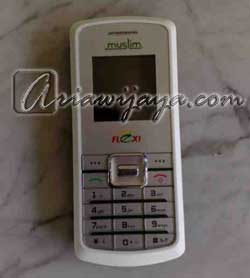
Flexi Package Internet trying Muslims with ZTE S-100

Incidentally a few days ago in love as a friend ZTE phone S-100 which dibundling with Flexi (Flexi Muslim), I tried to use this phone as a modem, because in the sales package've disedikan data cable and modem drivers. To try out this internet connection I use Flexi Unlimited, with a daily package.

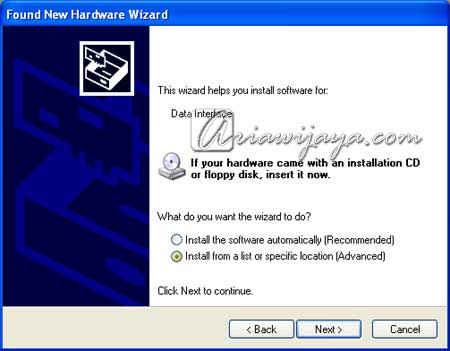
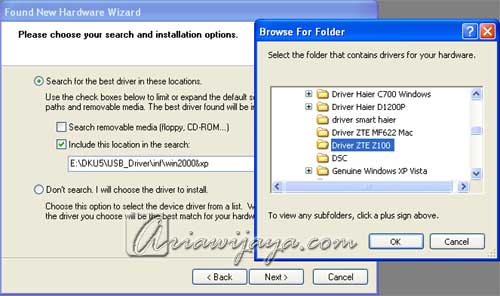
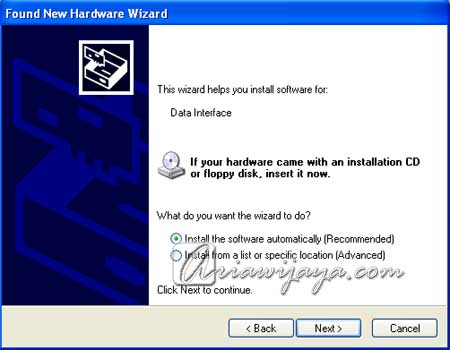
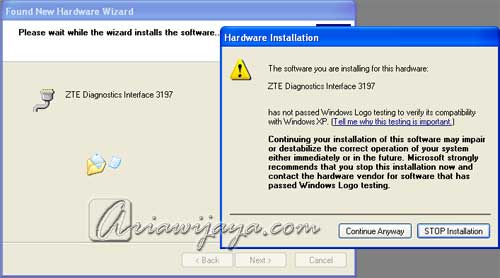
When you first connected to a laptop with a data cable, Windows XP automatically detects new hardware and request the necessary drivers, the first is the driver Data Interface (modems). To update the driver manually created because I've no driver, stay focused when I save the driver.

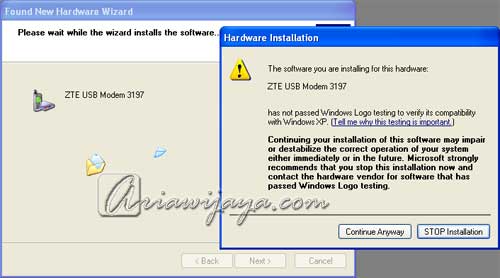
Next is detected is ZTE Diagnostics Interface 3197, again point to where we store driver.

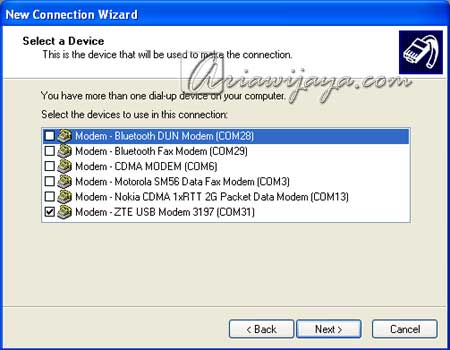
After all the drivers installed on the laptop / computer, the next step to a new Internet connection settings are the steps as well as information about previous Internet connection. Selected for modem modem - ZTE USB Modem 3197.

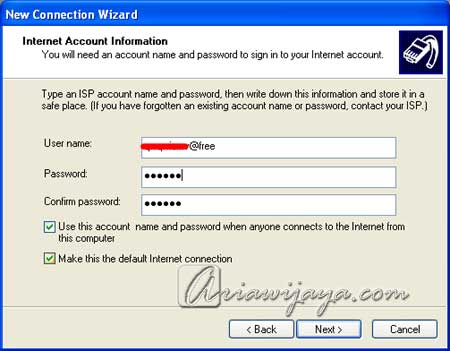
As for your username and password filled in accordance with the registration answer Flexi sms Unlimited.

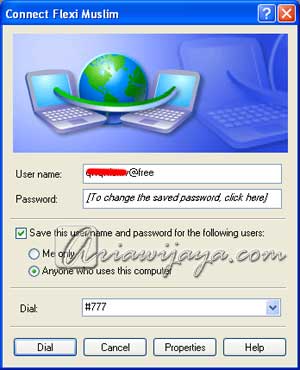
Done, and is now ready to make an internet connection.

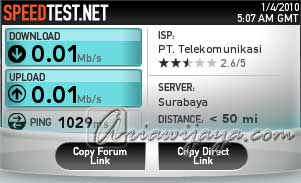
After I tried several times and I try to do tests with Speedtest.net and Pingtest.net, turn out to be unsatisfactory reply in my opinion. From the results of tests with Speedtest.net, the download speed is only getting 10 Kbps (0.01 Mbps) and uploads at 10 Kbps (0.01 Mbps). Different from modem ZTE MG880 with Flexi Unlimited I've ever used, even with the iConnect modem and Flexi C8300 Unlimited.

Temen-temen so quick information about using phone modem ZTE S-100 and Flexi card, if there is another temen ever tried to please Sharring experience in the comments.

Thank you, and hopefully useful.

Testing connection speed EVDO USB Modem Smart


Right yesterday afternoon finally gw goal to have a Smart EVDO USB Modem also achieved. Gw beli Smart EVDO USB Modem is in the Plaza Marina Surabaya Lt. Apollo 2 in the store for Rp. 885.000, -.

Muter-muter could also search for the best price and sellers can search jelasin with bener about Smart EVDO USB Modem, but finally on store gw Apollo select the least expensive and are also friendly and the seller can jelasin about Smart USB EVDO Modem is.

Well Package Smart EVDO USB Modem includes a USB modem 1 fruit, 1 Data Cable (Extension), 1 piece of Smart Card and also several books on how to pake modem and Internet subscription unlimited ways. This package also provides a free internet service for 100 days with the Platinum Package starting after Smart EVDO USB Modem is enabled.

Got home, got confused also create Smart cards plug into this USB modem. But see also how to end .... who turned out this USB Modem backcover (gray) drawn backward to open it. After completion of all kinds, including the modem settings, is also excited to try the internet connection speed .... because it houses the regional gw Pondok Candra Indah quite far with the BTS in Surabaya at Jalan Pemuda.

But my friend, gw ngga expected at all connection speeds were practically Maknyus! Gw internet speed test at speedtest.net site and the results are even ping / latency is around 200ms but gede download speed is 1 Mbps and upload speeds reaching 0.3 Mbps!

Gw coba download games for free from gw own blog and found the download speed up 50KB/sec sometimes even more! Then when gw open facebook, the speed to open the page can fairly great, because it requires almost no time to open the alias page 1 direct click open. Wehehe ... seems gw ngga nih buy nyesel Smart EVDO USB Modem is ^ _ ^

So for my friend who wants to enjoy the speed Wireless Internet and Save the Great, there is no harm in trying Pack Smart EVDO USB Modem this one. Since it with such speed, including affordable subscription fee of USD 140.000/bulan for Platinum Package with Max New Max 3.1 Mbps and 0.38 Mbps upload.

Antenna Modem Smart ZTE AC2726

- Antenna form of simple, easy to carry anywhere.
N simple practical dismissal brought the modem if you want. so do not need to come off the modem yg antenna mounted on the tiled
- Goods Import
- Signal Strength (In Theory) Up to 5db
- Just plug into the slot antenna
- Dimensions: - Height: + / - 28cm
- Cable length: + / - 3m
- Put the outer area (ie outside the window), The bottom antenna is magnetic, so you can put over the metal
- No Warranty.
- Checking the quality of the signal difficult to measure. However, with this usage, indirectly increasing the signal quality & stable.

Support:

- Only support Smart modem ZTE AC2726
- Do not know the modem support Haier CE100, Axesstel MV-140B, Pantech PX500. Krn not have a modem is

Picture something like this:


More or less similar implementations for these Sierra modems.


Test results:


Daytime


Tengah malam


Middle of the night, sometimes penetrating to this

Rabu, 06 Januari 2010

US Robotics Modem USB 'Controller Base' Data/Fax 56K V92


Designed in a small compact, flexible USB Modem 'Controller Base', Data / Fax 56K * V.92 offers performance and reliability USRobotics is known that. The modem controller provides processing capabilities of powerful communication, to save the power of your computer, allowing you to work or relax more freely, while you send and receive a message or a fax.

'Quick Connect' minimizes the connection time to you faster access to Internet and V. PCM Upstream allows for loads up to 50% faster, perfect for sending e-mails with attachments. Also, if you have subscribed to the service call waiting and Caller ID from your telephone company, the Modem on Hold feature allows you to display incoming calls and take the most important, while continuing to surf the Web, so you do not need a second phone line!

Main features:

* Send and receive faxes through your computer while using other applications
* Capable of receiving up to 56 Kbps and sending up to 48 Kbps (or 31.2 Kbps with V.90 server)
* Support for dissemination and delayed sending of faxes and fax grouping
* Quick Connect reduces the time required to establish your Internet connection
* Download new features and enhancements as and when they become available
* Plug and Play: installation and operation simple and fast
* Power by USB port
* Compatible with Windows, Linux and Mac OS

Content of

* USRobotics 56K USB Modem
* Cord and telephone jack
* Quick Installation Guide
* CD-ROM with user guide, a communications software fax / data, and application USRobotics Modem on Hold (Windows 2000 and later)

http://www.ldlc.com/fiche/PB00095025.html

Viewing Internet Connection Speed with Netstat Live

I had previously informed the software to see the speed internet connection such as FreeMeter, Bandwidth Monitor, Rokario, or other application in writing on how to monitor bandwidth. For this time I was informed that similar software Netstat Live, this software was developed by AnalogX and can be used in free, even for registration was also free.

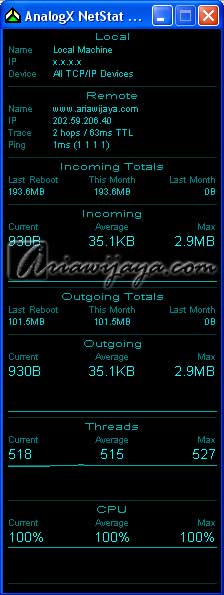
Same with the software to another bandwidth monitor, Netstat Live It also provides information about download and upload speeds, including the amount of data that we downloaded and uploaded.

View from Netstat Live itself is quite simple, because for visualization only use one color only. This Visualiasi sebenernya even help us in reading the information provided.

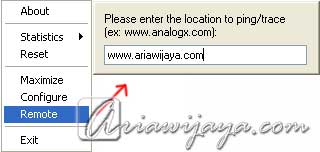
In the first section, most of the Local, showing information about the computer that we use (name, IP address, and connection that we use). The second part, Remote, showing information from the website we want the remote. To do this the remote itself, we can click right mouse button on the Netstat Live, then select Remote and content of the web address we want to see the information.

The next section, namely Incoming Totals, here diinformasi total data we have received (downloaded), to reset the data, we lived right click and select Reset. Incoming itself shows the download speed in realtime (Current), average (Average), and maximum speed (Max) in unit B (Bytes), KB (Kilobytes), MB (Megabytes), b (bits), Kb (kilobits ). Change the number of information in this section will be followed by changes in the graph below.

Next Outgoing Outgoing Totals and, second this information with previous information, except that here the information contained on the data and upload speed.

Threads itself provides information about the series of processes are running on our system. As for the CPU itself shows the load / load from the CPU us.

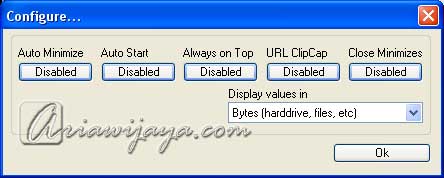
Netstat Live from the configuration itself can be arranged through the Configure menu (right click), here we can set whether Netstat Live software will be made autorun (active immediately when you start the computer), or want to hide the system tray, always in a position created top, and other konfirgurasi.

Interested to try? To download Netstat Live can be seen in the Software Download.


Internet connection on the Apple Mac OS X with Modem Nokia E61

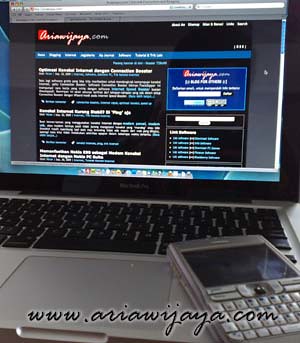
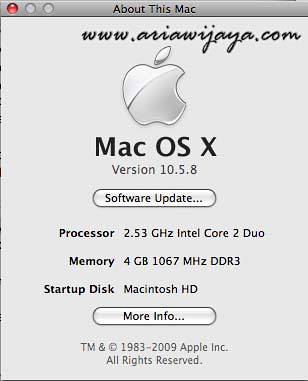
After a lot before I talk about internet connection in the Windows operating system and some of the Ubuntu Linux OS, I created the following text with Apple Mac OS X. I use my own hardware Apple MacBook Pro (Mac OS X version 10.5.8, Intel Core 2 Duo 2.53 Mhz, 4 Gb DDR3 memory) pinjeman from temen (happened to be temen yang pake and willing to make dipinjem review: D). My own cell phone Nokia E61 still rely on my cell phone as a modem've not karuan shape, and cards with Flash Halo Unlimited who've di'limit '. To use the tools bluetooth connections.

To connect to the Internet with a phone modem in Mac OS X is in principle through two stages, the first is the pairing (using Bluetooth) between the phone with his Apple Mac and the second is setting the connection itself. Immediately, I began with the pairing stage.

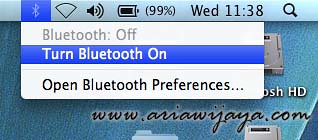
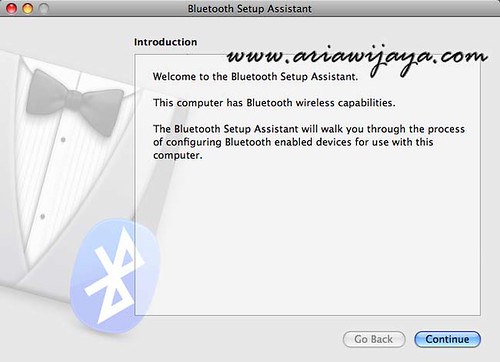
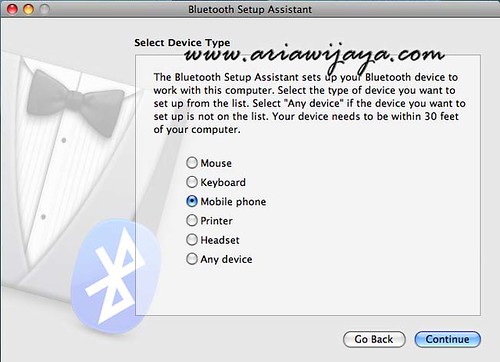
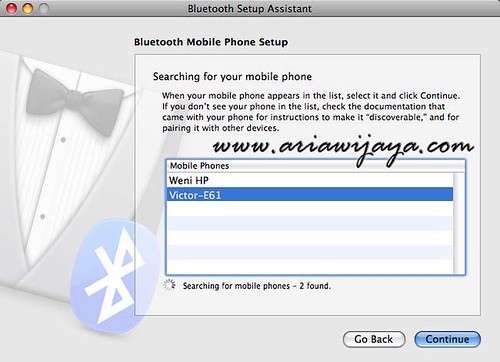
The first is to enable bluetooth on the phone and the MacBook Pro. For the MacBook Pro I use the Bluetooth Setup Assistant to simplify the process. At the Select Device Type, I select mobile phones, and automated scanning will be done on mobile devices that are active bluetoothnya, then I choose the Nokia E61 (Victor-E61).

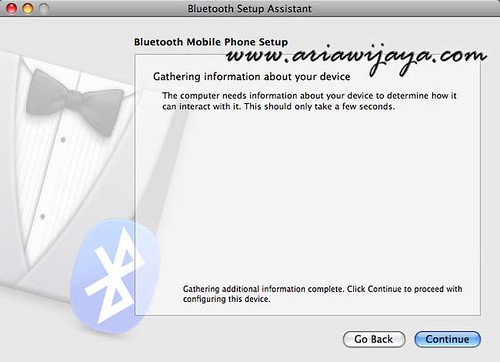
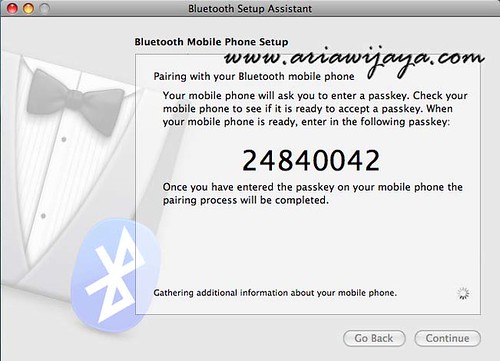
Next wait for the 'Apple' to collect data and information about the Nokia E61 is selected, when ready we will be asked to enter the passkey into the phone code in accordance with the passkey is written on his Apple.

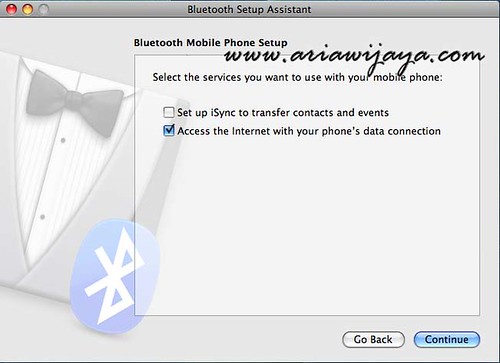
After successful we will be given the option associated with that facility can be used with the Nokia E61 phone. Because I only want to use as a modem, then the option Set up iSync to transfer contacts and events are not my choice.

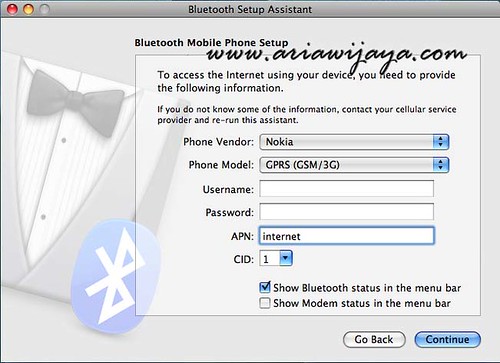
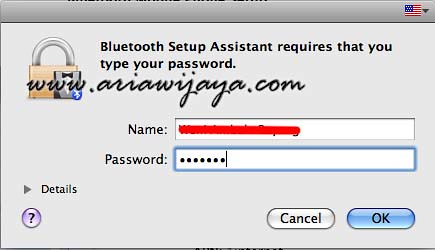
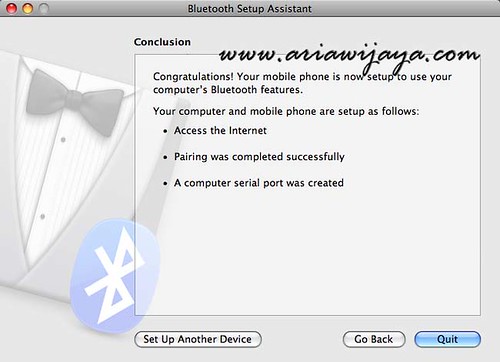
The next step is to setup the connection parameters, for the vendor I select Nokia, and type of his own cell phone GPRS (GSM/3G). Because I use Telkomsel Flash, then my username and password blank, and my APN to internet content. If we activate the password function in Apple's MacOS, then we will be asked to fill in the username and password. To this end pairing process and initial setup is complete.

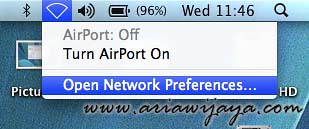
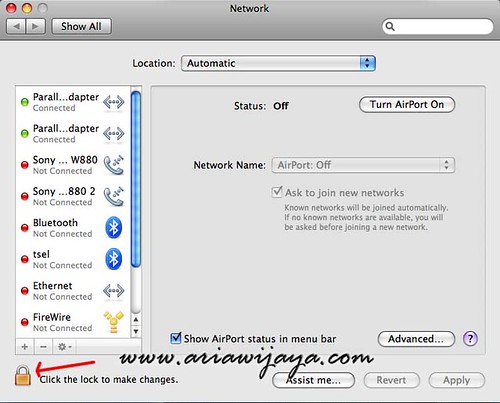
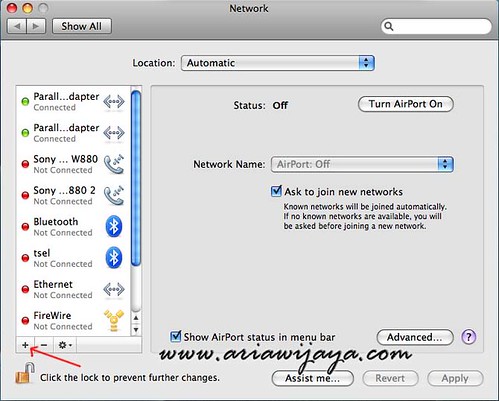
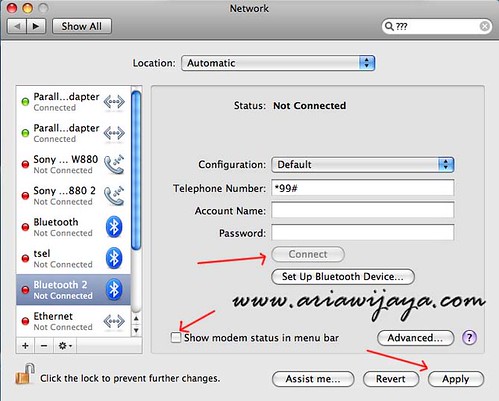
The next stage is to conduct Network settings (network). Sign in to menu Network (Open Network Preferences). And create a new connection (previously used to open the padlock on the bottom of the picture, if we lock it, if not we can just press the + to add the network).

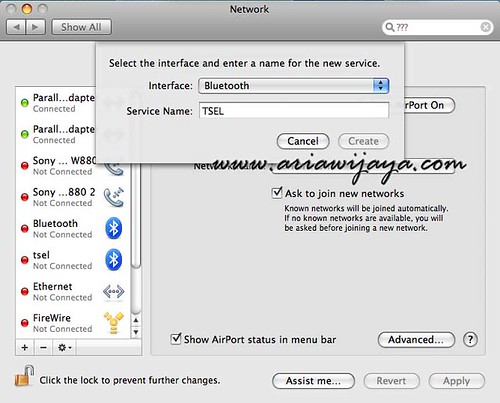
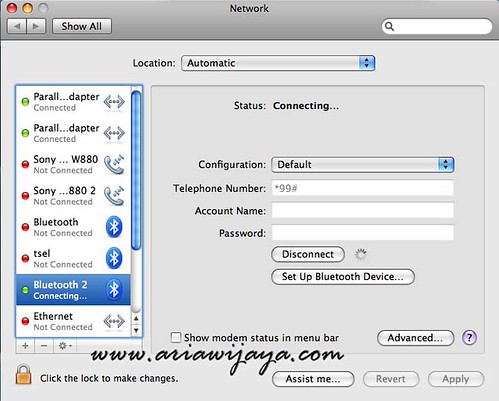
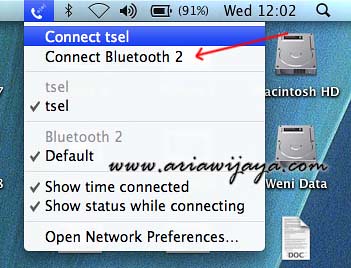
Select Bluetooth (setting pairing we have made in the above) at the interface and name the connection (free). Next enter * 99 # in the Telephone Number, save the settings by pressing the Apply button, and press Connect to connect, or if we want to create a shortcut on the Menu Bar then we can check the Show modem status in menu bar.

If we press Connect on this panel, then the Internet connection will automatically be done. Or we can also connect through a shortcut in the Menu Bar that we chose in the previous step. If the connection is successful then the Menu Bar will appear to the length of time that the connection is running.

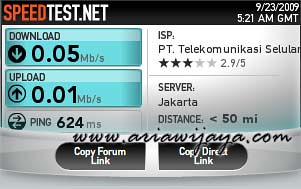
To complete this article, here are the results of tests using Speedtest.net connection. Because I have a quota which is up from the beginning of the month (quota speed I get when performing this test up to 64 Kbps for've passed from 512Mbps), it can be seen the results, to download I only get 50 Kbps, and upload only sadder 10 Kbps.

Okay, so a brief information about the internet connection on Apple Mac OS X with your Nokia E61 as a modem. Hopefully useful.