Tampilkan postingan dengan label Bluetooth. Tampilkan semua postingan

Jumat, 02 Juli 2010

Improve Your Wireless Devices' Reception with a USB Hub

Improve Your Wireless Devices' Reception with a USB Hub
As more and more peripherals—like your keyboard and mouse—go wireless, your cable management problems may end up giving way to reception problems. Tech blog Tested says moving your wireless dongles to a dedicated USB hub can do wonders for that reception.
Why move your stuff to a cheap, dedicated multi-port USB hub rather than keeping them plugged into the tangled hell behind your desk?
Placing your wireless dongles in an open space means better reception and transmission range for keyboards and mice, and has the added bonus of making your dongles easier to manage and troubleshoot.
Sounds good to us. If you don't have much in the way of wireless dongles and you do have USB inputs on existing gear—like your monitor or even keyboard—you can always use those as your free-from-interference hubs as well. But it's a good piece of advice to keep in mind if you're having trouble with your wireless gear.

Jumat, 16 Oktober 2009

Nokia CDMA Internet Connection via Bluetooth

This post is an extension of a previous post about the internet connection with Starone, except here I use Bluetooth as a means of connecting the phone with your PC / laptop.

Until now I use this connection due to excess compared with the cable flexibility. With bluetooth I do not have to put the phone close to the intricacies of a laptop plus CA-53 cable is accidentally cut off sometimes because of port connections in a simple cell phone off (especially if the cable is too often apart pairs).

For example here I still use my Nokia 2865 CDMA with CDMA card from Starone Stud, plus the bluetooth dongle (laptop that I use no bluetoothnya), Toshiba laptop Pentium M. Additional applications are the Nokia PC Suite, if no, please see the download PC Suite.

Prinsip dasar koneksi dengan bluetooth sebenarnya sama dengan koneksi kabel, perbedaan hanya pada modem yang digunakan (walaupun ponsel sama, modemnya berbeda mengikuti koneksi yang digunakan).

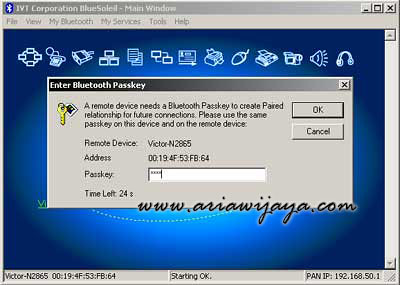
Langkah pertama yang dilakukan setelah dongle bluetooth terpasang (driver sudah terinstall), dan bluetooth pada ponsel telah diaktifkan adalah melakukan pairing antara PC/laptop dengan ponsel.
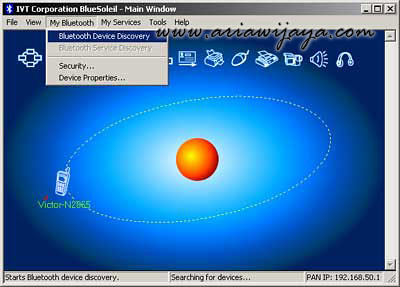
After pairing successfully, now we enter the second step of setting up a modem bluetoothnya, by going to 'Control Panel' and select 'Phone and Modem Options', select the 'Modems'

Then select the bluetooth modem is detected by the PC / laptop, and click 'Properties'. Here we make the bluetooth modem settings, for the same material filled with my previous post (please see in step 4 to step 6)
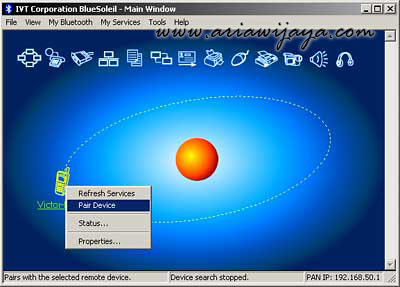
After we finished bluetooth modem settings, now go to the next step, namely to connect the internet. First we went to the window bluetooth, here we will see a phone we'd been pairing it with a PC / laptop, right click the phone icon and select 'Refresh Services' (could also through the menu on the 'My Services').

After the Bluetooth connection from the active mobile phone, the Bluetooth icon and then select the Dial-Up Networking Service (phone pictures).
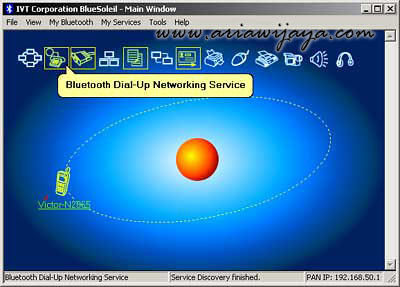
Here we will be brought to the windows 'Connection Bluetooth DUN Connection', the contents of your username with 'starone' (without the quotes) and password with 'indosat' (without the quotes), dial-up number is filled with # 777, before selecting 'Dial' check the modem that we use to select the 'Properties' (make sure the modem you select is a Bluetooth modem that we had previously set), if the modem is in conformity means that we can connect by clicking the 'Dial'
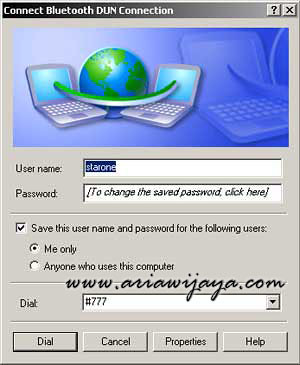
If the connection is successful then the bottom right screen will display a notification internet connection with a Bluetooth modem.

Done. Not so easy, we can now more easily connect anywhere, without having to spend the Nokia CDMA phone from a purse or shirt pocket (but remember there is a maximum range of a Bluetooth connection can be done>> about 10 m, but I suggest no more than 2 meters for the smoothness of our Internet connection).

Good luck.

Note: connection speed is also influenced by signals from Starone conditions in our environment to connect to the Internet (at least 3 bar signal is for a normal connection)

http://ariawijaya.com/2008/05/10/koneksi-internet-nokia-cdma-dengan-bluetooth/

Sabtu, 05 September 2009

Windows Mobile Phone can become Bluetooth Modem

Windows Mobile Phone can become  Bluetooth ModemDo you know that you can easily connect your Windows Mobile Pocket PC Phones and Windows Mobile Smartphones to a Windows PC through the help of Bluetooth. These phones will in fact work as a wireless dial-up modem.

Features Required

  • Windows Mobile device that supports Bluetooth
  • Dial-Up Networking
  • Bluetooth DUN
  • Windows PC Bluetooth-enabled

Recognize the Connection

Every Windows Mobile device functions as a wireless modem if the carrier has not disabled the service. After connecting it to PC, the device connects to wireless service provider’s data network and then provides the internet connection. So, check with your wireless service provider for wireless data plan.

Step 1: Set up a partnership by Bluetooth pairing

Pair the mobile device with your Windows PC or laptop. Power on the Bluetooth of the device and then open the Bluetooth software utility of the PC. After the name of the device appears there then select and click Next. Pair both and enter PIN if required. After the Services menu appears then select on Dial-Up Networking and then click the Finish button.

Step 2: Configuring the Bluetooth Modem

The Bluetooth modem connection is now added to Connect To subscription of Start Menu. Next, click on the new connection. Enter the Username and Password there. Before that click the Properties button. Properties menu is where you configure the connection. That is interfaced to wireless service provider or the ISP. There you have to click the Configure button.

  • Raise the speed to minimum 460000bps. Even enable here the Hardware Flow Control and the Modem Error Control. Next, click OK.
  • After this go back to the Properties menu and enter the dial-up ISP phone number. Then click OK. Note that for wireless carrier’s data network there is a dialing string rather than phone number. For AT&T/Cingular it is *99#.
  • Back in the Connect screen enter Username and Password for your ISP. It is given by the carrier.
  • Next, click Dial to connect.

Step 3: How to use the connection everytime

Just click Start, Connect To and then the device title. It is perhaps Bluetooth Modem. Now it is connected. For disconnecting just right-click on the device and then select Disconnect

http://mimobile.blogspot.com/2009/08/windows-mobile-phone-can-become.html